Tuesday, November 26, 2019

ERRORLOG flooded with "Service Broker endpoint" messages.

During system cleanup I hit an issue when SQL Server ERRORLOG file with a size of about 10 GB was 99.9% flooded by messages like this:
The Service Broker endpoint is in disabled or stopped state.

There were millions of them and every 15 minutes were adding the new ones.

I've searched the internet and got a not proven suggestion to create a Service Broker Endpoint.
Fortunately enough, the organization I'm servicing right now has Microsoft Service support hours assigned to a SQL DBA group. I've opened a ticket and got an answer from Microsoft.
MS representative referred me an online article: Service Broker with Always On Availability Groups (SQL Server) That article clearly states that all machines with Availability Groups must have
the Service Broker endpoint exists and is correctly configured.

So, the solution to stop that avalanche of useless messages will be very simple: just apply following script on a SQL Server, where you have Availability Groups and experiencing the issue:
CREATE ENDPOINT [SSBEndpoint] 
    STATE = STARTED 
    AS TCP  (LISTENER_PORT = 4022, LISTENER_IP = ALL ) 

    FOR SERVICE_BROKER (AUTHENTICATION = WINDOWS);

To prove that action is successful you can run following script:
SELECT name, protocol_desc, type_desc, state_desc, port
FROM sys.tcp_endpoints

WHERE type_desc = 'SERVICE_BROKER';


Also you can search in the ERRORLOG file that your Service Broker is Listening and does not produce garbage messages anymore:
EXEC sys.xp_readerrorlog 0, 1, N'listening';


Friday, November 22, 2019

Deleting a SQL Agent Job originated from an MSX server

Hit very weird situation when tried to remove jobs running on remote-target servers in multi-server managed environment.

First what I've tried is to unassign target servers from multi-server job on MSX server, however, it did not delete jobs on some targets.

When I've tried to delete them manually via SSMS I've got following error:

TITLE: Microsoft SQL Server Management Studio
------------------------------
Drop failed for Job 'CPU_Usage_By_Database'.  (Microsoft.SqlServer.Smo)
For help, click: https://go.microsoft.com/fwlink?ProdName=Microsoft+SQL+Server&ProdVer=15.0.18131.0+((SSMS_Rel).190606-1032)&EvtSrc=Microsoft.SqlServer.Management.Smo.ExceptionTemplates.FailedOperationExceptionText&EvtID=Drop+Job&LinkId=20476
------------------------------
ADDITIONAL INFORMATION:
An exception occurred while executing a Transact-SQL statement or batch. (Microsoft.SqlServer.ConnectionInfo)
------------------------------
Cannot add, update, or delete a job (or its steps or schedules) that originated from an MSX server. (Microsoft SQL Server, Error: 14274)
For help, click: http://go.microsoft.com/fwlink?ProdName=Microsoft%20SQL%20Server&ProdVer=12.00.5223&EvtSrc=MSSQLServer&EvtID=14274&LinkId=20476
------------------------------

When I tried to follow help links, provided by newest SSMS, they led me to Microsoft's advertisement portal.

The second I've tried was manual deletion of that job by a script:

EXEC msdb.dbo.sp_delete_job @job_name=N'My_MSX_Created_Job', @delete_unused_schedule=1;

It was not successful and gave me following short error without Microsoft adds:
Msg 14274, Level 16, State 1, Procedure sp_delete_job, Line 91 [Batch Start Line 59]

Cannot add, update, or delete a job (or its steps or schedules) that originated from an MSX server.

I've looked in "sysjobs" table and saw there a column "originating_server_id", which is referencing to "sysoriginatingservers_view" view, which has "originating_server_id" value always to be zero for the local server.
So the fixing script is as easy as this:
UPDATE msdb..sysjobs
SET originating_server_id = 0
WHERE name=N'<Your Job Name>';
GO
EXEC msdb.dbo.sp_delete_job
       @job_name=N'<Your Job Name>',
       @delete_unused_schedule=1;

GO


Monday, November 18, 2019

SQL Server 2019. Use of UTF8 vs Unicode.

SQL Server 2019 is life and it is time to play around and discover some interesting features of it.

Will start from UTF8 and how it is better than UNICODE.

Here is a simple script to demonstrate abilities of newest SQL Server UTF8 feature:
GO
USE tempdb
GO
DROP TABLE IF EXISTS dbo.tbl_Use_Of_UTF8
GO
CREATE TABLE dbo.tbl_Use_Of_UTF8 (
       ID INT IDENTITY (10,10)
       , UnicodeColumn NVARCHAR(4000)
       , UTF8Column VARCHAR(4000) collate LATIN1_GENERAL_100_CI_AS_SC_UTF8
       , UTF8_Ukr_Column VARCHAR(4000) collate Ukrainian_100_CI_AS_SC_UTF8
)
GO
INSERT dbo.tbl_Use_Of_UTF8 (UnicodeColumn) VALUES
(N'༈༉ШЧݪݫݬݭܕܖܗܘܙऔकखഈ㔃㔄刀刁⠴⠵ȀȁȂȃꔂꔃՈՉ')
,(N'abcde༈༉ШЧݪݫݬݭܕܖܗܘܙऔकखഈ㔃㔄刀刁⠴⠵ȀȁȂȃꔂꔃՈՉ')
,(N'абвгдеАБВГДЕ')
,(N'abcdefghABCDEFGHабвгдеАБВГДЕ')
,(N'abcdefghABCDEFGH');
GO
UPDATE tbl_Use_Of_UTF8 SET UTF8Column = UnicodeColumn, UTF8_Ukr_Column = UnicodeColumn;
GO
SELECT Chars = LEN(UnicodeColumn)
       , UnicodeSize = DATALENGTH(UnicodeColumn)
       , UTF_Size = DATALENGTH(UTF8Column)
       , Ukr_Size = DATALENGTH(UTF8_Ukr_Column)
       , UTF8Column, UTF8_Ukr_Column
FROM dbo.tbl_Use_Of_UTF8;
GO

The result will be like this:


From that result we can make following observations:
1. Use of multiple languages in UTF8 column takes more space than Unicode column. (First and Second rows)
2. Use of single non-Latin language in UTF8 field does not provide any size reduction at all. (Third row)
3. Use of a combination of Latin and a single non-Latin language bring some size reduction.(Fourth row)
4. Use of only Latin characters in UTF8 column gives us 50% size reduction over Unicode.

Conclusion

UTF8 is not suitable to store purely non-Latin languages.
However, it can be extremely useful when you store only Latin characters, but have in mind a possibility of storing small number of records, which contain non-Latin characters.

The most useful case for that can be database's "Address" field to store names of streets and cities in the US.
99.9% of which, will be in Latin, but names like "Doña Ana", "Lindström" or "Utqiaġvik" would require use of Unicode. With UTF8 you can save exactly 50% of your disk space and eventually have some performance improvements.


Wednesday, October 30, 2019

Power BI Desktop: How to determine a Connectivity mode for a query? Can I change it?

After you build Power BI dashboard you want to make sure that everything is set as it supposed to be.

Or, you are troubleshooting PBI dashboard performance and trying to figure out what it is doing.

For a Power BI dashboard it is very important if it runs against live data or internally imported data.
Which Connectivity/Storage mode your query is using, "DirectQuery" or "Import"?

That is very easy to determine, just put your cursor above name of your data set, and after about one second an informational label will tell you a Storage mode for that query.
Looks like this:


As you can in my dashboard: data set "Objects" is "Imported", but data set "Partitions" has "DirectQuery" as a source.

Now will take a look on how to change it.
So far I haven't found a menu option for doing this, but it is still possible:

1. First, start "Query editor". Then:
- Highlight your query (Partitions);
- Choose "Transform" tab in a menu;
- Click on "Group By" menu item.

2. You do not have to do anything in the "Group By" interface. Just hit "OK".

3.Than "Switch all tables to Import mode" button should appear at the top of your data:

4. Remember that is the ONE WAY ROAD, you won't be able to get back if you press this button. If you just will try to apply the changes without switching you'll get an error message like this:

5. Whether you decided to switch from "DirectQuery" to "Import" Storage mode you have to clean your "Grouping By" change by deleting it. Just simply click on a cross on the left side of the pane of your query:

 At the end, I want to point again:
You can easily switch from "DirectQuery" to "Import" Storage mode, but you can't go back.
So, be careful with it.

Wednesday, October 23, 2019

Integer Number limitation in Power BI

By doing heavy calculations with big integer numbers I've hit Power BI whole number limit, which is "9,007,199,254,740,992".

If you try to get to any number higher than that Power BI will start rounding your results.

Here is what I've found about that problem online:
Source: Data types in Power BI Desktop

I've done my own research and here is what I've found.
Here are two queries I've created for the test:
SELECT TOP 62 [Power]=ROW_NUMBER() OVER(ORDER BY (SELECT NULL))
       ,[Number]=POWER(CAST(2 AS BIGINT),ROW_NUMBER() OVER(ORDER BY (SELECT NULL)))
       ,[Number+1]=POWER(CAST(2 AS BIGINT),ROW_NUMBER() OVER(ORDER BY (SELECT NULL)))+1
       ,[Number-1]=POWER(CAST(2 AS BIGINT),ROW_NUMBER() OVER(ORDER BY (SELECT NULL)))-1
FROM sys.messages;
GO
SELECT TOP 62 [Power]=ROW_NUMBER() OVER( ORDER BY ( SELECT NULL))
       ,[Number]=-POWER(CAST(2 AS BIGINT),ROW_NUMBER() OVER(ORDER BY (SELECT NULL)))
       ,[Number+1]=1-POWER(CAST(2 AS BIGINT),ROW_NUMBER() OVER(ORDER BY (SELECT NULL)))
       ,[Number-1]=-1-POWER(CAST(2 AS BIGINT),ROW_NUMBER() OVER(ORDER BY (SELECT NULL)))
FROM sys.messages;

GO
First query produces positive powers of "2" and second produces negatives.
The result in SSMS looks like this:

I've used both queries in Power BI Desktop and here is what I've got:

The result was expected, all numbers bigger than "9,007,199,254,740,992" and less than "-9,007,199,254,740,992" were rounded, but I've got something totally unexpected.

Look at the highlighted red boxes. The SUM of positive numbers produces negative Total and the SUM of negative numbers produces positive Total!

That might be a "feature", but it looks like a bug for me.

That behavior persists in the newest release: Version: 2.74.5619.841 64-bit (October, 2019)

Tuesday, October 22, 2019

Link tables in Power BI by two columns

Power BI is not always friendly to BI developer and you need to do some work around to get what you need.
Here is a simple case:

The Problem:

We have two tables in Power BI Desktop, which we need to link, but it happens they have to be linked by two columns.

The Case:

Simplest case is to create two Queries to a "master" table in any SQL Server. Call them "Partitions" and "Indexes":
 

Here are these simplest queries:

-- Partitions
SELECT * FROM sys.dm_db_partition_stats;
-- Indexes

SELECT * FROM sys.indexes;

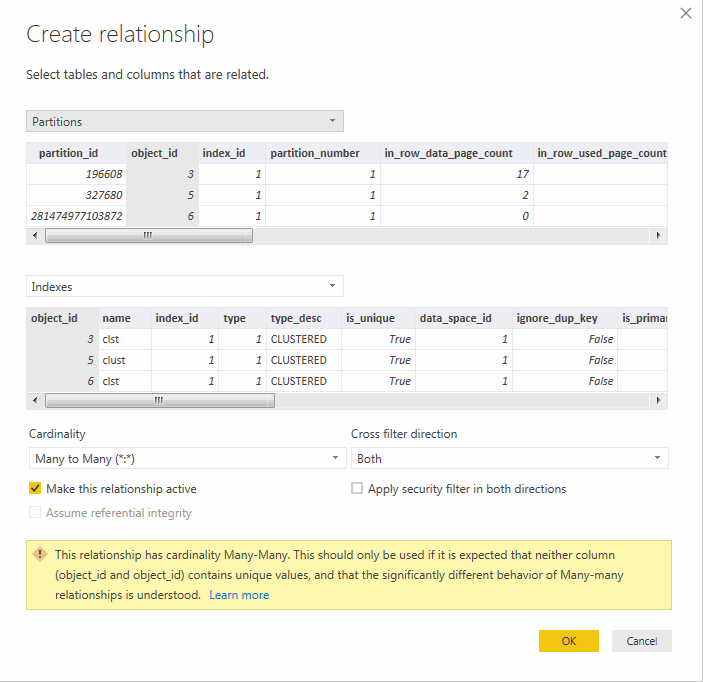
If we go now to a model tab and try to link tables by "object_id" column . . .

We will get a message that we can build only "Many-2-Many" relationship and if we want to do a "One-2-Many" we need to have a column to be unique on one side:

The problem is that we can't select two columns to link those two tables to establish relationship.

The Solution:

Do a right click on "Indexes" query in the "Fields" tab and select "New Column":
 Specify following formula in the "New Column" box at the upper left:
Index_Key = POWER (2,32) * Indexes[index_id] + Indexes[object_id]

Like this:

Create new column in the "Partitions" the same way as for "Indexes":

The formula for Partitions will be only slightly different:
Index_Key = POWER (2,32) * Partitions[index_id] + Partitions[object_id]

Will look like this:

As the result, you will see the New columns in the modeling view, where you can click on "Manage Relationship" button in the menu.

For the new relationship specify following:
1. First table: "Indexes"
2. Second table: "Partitions"
3. Select the very last column "Index_Key" in both tables
4. Specify cardinality as "One to many (1:*)"
5. Apply security filter in both directions (optional)
6. Hit OK

Now you are supposed to get such a beautiful "One-2-Many" relationship:

Possible caveats:

In my example "Index_id" numbers are very small.
If your calculated number hits a value bigger than "POWER (2,53)", which is the current Power BI Desktop application limit for the Whole numbers, in numeric form the limitation number is: "9007199254740992"
*That is applicable for version of: 2.73.5586.661 64-bit (September, 2019)

In that kind of situation you can use a string concatenation formulas like this:
Index_Key = Indexes[object_id] & "-" & Indexes[index_id]
Index_Key = Partitions[object_id] & "-" & Partitions[index_id]

*The "-" symbol is very important, because you can hit the situations when two numbers can possibly generate a similar string like "1&11" produces "111" and "11&1" also produces "111", which won't allow you to establish the uniqueness.

Thursday, October 17, 2019

When a database was last accessed?

When a database was last accessed?

You might say: "- What the silly question.... I'm accessing it right now!"
And you would be absolutely right if your database is online, but what if it is offline?

How to figure out when database got offline?

One way id to try to bring you database in question online and then look at the objects/indexes/statistics etc. and you might figure it out.
However there is much easier method without bringing database online.
Just use CMD or PowerShell.

At first, you need to figure out location of your database's log file:
SELECT physical_name
FROM master.sys.master_files
WHERE type = 1 and database_id = DB_ID('sysdb');

GO

Then you can run a CMD commands like these to get Last Write and Last Access times:
dir N:\Logs\sysdb_log.ldf /TW
dir N:\Logs\sysdb_log.ldf /TA

Or you can use simple PowerShell command to get the same info, but with precision to the seconds.
ls N:\Logs\sysdb_log.ldf | Format-table -Property LastWriteTime, LastAccessTime

In my case result was horrible!

The database was sitting offline for more than a year and nobody paid attention to it.

Isn't t easy?