Showing posts with label SSIS. Show all posts

Friday, February 7, 2025

SSIS: REPLACENULL does not support (DT_DBTIMESTAMP2,7)

 Using the "REPLACENULL" functionality frequently in the "Derived Column" component, the "Conditional Split" component, and other places in SSIS where formulas can be applied is common.

However, I recently encountered an issue with the "DT_DBTIMESTAMP2" data type.

The following formula produced an error:

REPLACENULL(TestDt, (DT_DBTIMESTAMP2,7)"1900-01-01 00:00:00.0000000")

Error: 0xC020902A at Test Transformation, Derived Column [2]: The "Derived Column" failed because truncation occurred, and the truncation row disposition on "Derived Column.Outputs[Derived Column Output].Columns[TestDt]" specifies failure on truncation. A truncation error occurred on the specified object of the specified component.

This error occurs because "REPLACENULL" returns a "DT_WSTR" data type. To make it work, we need to convert "DT_DBTIMESTAMP2" to "DT_WSTR" and then convert it back to "DT_DBTIMESTAMP2", like this:

(DT_DBTIMESTAMP2,7)REPLACENULL((DT_WSTR,30)TestDt,"1900-01-01 00:00:00")


Alternatively, a more elegant solution is to replace "REPLACENULL" with an "IF" condition:

ISNULL(TestDt)?(DT_DBTIMESTAMP2,7)"1900-01-01 00:00:00":TestDt


Thursday, January 30, 2025

SSIS warning message about SSAS Cube processing: "Operation completed with XXX problems logged"

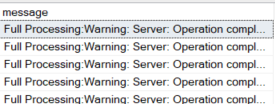
If you process SSAS cubes via SSIS packages you might notice a weird message like "Full Processing:Warning: Server: Operation completed with XXX problems logged."

How you can get that message (if you have that problem):

1. You can do a report, from your package's execution and get something like this:

SSIS processing SSAS Cube Warning message


2. You can run a T-SQL script against your SSIS server:

SELECT TOP 100 message_time, message
FROM [SSISDB].[internal].[operation_messages]
WHERE message_type = 110 AND message_source_type = 40
   AND message LIKE '%Warning: Server: Operation completed with%problems logged.'
ORDER BY message_time DESC;

If you have that problem you might have something like this:


The Problem.

1. SSIS Server does not provide you any details on that warning nor any associated problem.
2. SSAS Server also does not report any problems associated with that Cube processing.

Solution.

You can use "Extended Events" to capture these problems:

1. For that, you have to create an Extended Event Session using following script on your SSAS Server

<Create xmlns="http://schemas.microsoft.com/analysisservices/2003/engine">
  <ObjectDefinition>
    <Trace>
      <ID>SSAS_CubeProcessing_Stream</ID>
      <Name>SSAS_CubeProcessing_Stream</Name>
      <XEvent xmlns="http://schemas.microsoft.com/analysisservices/2011/engine/300/300">
        <event_session name="SSAS_CubeProcessing_Stream" dispatchLatency="0" maxEventSize="0" maxMemory="4096" memoryPartition="none" eventRetentionMode="AllowSingleEventLoss" trackCausality="true" xmlns="http://schemas.microsoft.com/analysisservices/2003/engine">
          <event package="AS" name="ProgressReportError" />
          <target package="package0" name="event_stream" />
        </event_session>
      </XEvent>
    </Trace>
  </ObjectDefinition>
</Create>

2. Then you run "Watch Live Data" for that session

3. Run your SSIS Cube processing package and monitor the events.

As the result you'll get something like this:


A Problem description you can find in an Event's details under "TextData" name:


At the end, do not forget to delete your Extended Events monitoring Session.

Friday, July 19, 2019

SSIS Data Profiling of Multiple data sets in multiple databases

      I assume you hit my post because you are already know how to do SSIS Data Profiling for a single table, but now you want to know how to do it for all tables in your database, or even more, Profile ALL data on ALL Databases on your Server and maybe profile whole data universe of your SQL environment.

      If you just need to Profile several of your tables, than there is pretty good old solution in the Internet: http://agilebi.com/jwelch/2008/03/11/using-the-data-profiling-task-to-profile-all-the-tables-in-a-database/
In this post I'll go further using "step-by-step" methodology.

Step 1. Preparing variables.

After you created new SSIS package set necesary variables first.
Most of the variables are regular strings, some are calculations and one object:

Strings: 

"SQLServer" - Name of your target SQL Server - has to be set;
"SourceDatabase" - Name of a currently targeted Database;
"ResultPath" - Folder, where all XML results will be placed. In my Example that is:
                "C:\Projects\DataProfiling\";
"ProfileXMLHeader" - XML Header of Data Profiling Request - must be set;
"ProfileXMLFooter" - XML Footer of Data Profiling Request - must be set;
"ProfileXMLBody" - XML Body of Current Data Profiling Request;

Calculatables:

"ResultFolder" - Folder, which will be created for your SQL Server instance. The formula is:
                "@[User::ResultPath] +  @[User::SQLServer]"
"ResultFile" - File name, which will be created for an individual database. The formula is:
                "@[User::ResultFolder] + "\\" +  @[User::SourceDatabase] + ".xml""
"ProfileXML" - Current XML Data Profiling Request. The formula is:
                "@[User::ProfileXMLHeader] +  @[User::ProfileXMLBody] +  @[User::ProfileXMLFooter]"

Object:

"DatabaseList" - That will be collection of database names on your server to loop through;

Variables settings:

Besides of "SQLServer" and "ResultPath" you have to setup Header and Footer of your XML request. For Visual Studio Version 16.0.1 there should be following values, but you can extract and use them from your own requests:
"ProfileXMLHeader"
<?xml version="1.0" encoding="utf-16"?>
<DataProfile xmlns:xsi="http://www.w3.org/2001/XMLSchema-instance" xmlns:xsd="http://www.w3.org/2001/XMLSchema" xmlns="http://schemas.microsoft.com/sqlserver/2008/DataDebugger/">
  <ProfileVersion>1.0</ProfileVersion>
  <DataSources />
  <DataProfileInput>
    <ProfileMode>Exact</ProfileMode>
    <Timeout>0</Timeout>
    <Requests>
"ProfileXMLFooter"
    </Requests>
  </DataProfileInput>
  <DataProfileOutput>
    <Profiles />
  </DataProfileOutput>
</DataProfile>
As you can see, the Body of your XML Data Profiling Request will be placed between the tags "<Requests>" and "</Requests>"

As a result, your variables' settings should look like this:

Step 2. Preparing Connections

You will need only two connections in that project: to your SQL Server and to an output file.
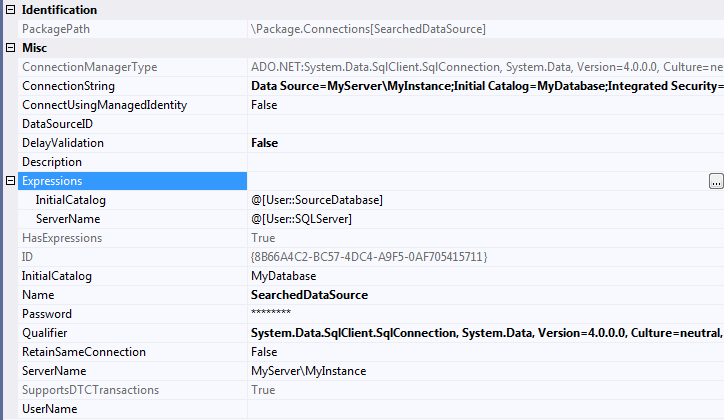
First connection is "SearchedDataSource" - SQL Server connection:

After you created the connection you have to go to its properties and set Expressions as following:
"InitialCatalog" = @[User::SourceDatabase]
"ServerName" = @[User::SQLServer]
Setting "ServerName" as a variable will give you a freedom to point to different servers and possibly to go through their list you you wish.

Second connection is "ResearchResult" - File connection:
 
For that connection you also set an Expression in its properties:
"ConnectionString" = @[User::ResultFile]

Step 3. Building SSIS Package

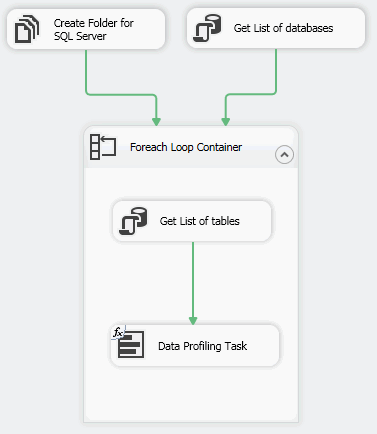
Here is what you are going to build:

"Create Folder for SQL Server" - File System task to create a new folder for your data files:

"Get List of databases" - "Execute SQL Task" Fills out "DatabaseList" object with list of databases to process.
The most important Points are:
- Connection type: ADO.NET
- ResultSet: Full result set
- Result Set: 0 = User::DatabaseList
- SQL Statement: List of your databases. In this example I've excluded system databases, but you can do your own exclusions or build custom lists.

SELECT name FROM sys.databases WHERE database_id > 4

"Foreach Loop Container" - Loops through the list of your databases. There you use your object "DatabaseList" as Looping source.
Besides of looping, you need to extract current database name into "SourceDatabase" variable:

Inside of the loop you need to build SQL Task "Get List of tables" as following.
The most important Points are:
- Connection type: ADO.NET
- ResultSet: Single Row
- Result Set: 0 = User::ProfileXMLBody
- SQL Statement: The most crucial part of the project and I'll explain it below.


Here is not too complicated, but very important SQL Script.
At first, it does "DBCC UPDATEUSAGE(0);" for your database. That is important to prevent SSIS bug described in my previous post (https://slavasql.blogspot.com/2019/07/ssis-Data-Profiling-UPDATEUSAGE.html)
At second we build list of all tables in the database. As you can see in the "WHERE" clause I exclude system tables and empty ones. Also, it might be necessary to exclude tables, which are too big and won't fit into the memory.
The third part is just looping through the tables and building XML body for the request.
SET NOCOUNT ON
DBCC UPDATEUSAGE(0);

DECLARE @xml NVARCHAR(MAX)=N'';
DECLARE  @i INT, @m INT;
DECLARE @tbls TABLE (ID INT IDENTITY(1,1), [schema] SYSNAME, [name] SYSNAME)
INSERT INTO @tbls([schema], [name])
SELECT DISTINCT SCHEMA_NAME(t.schema_id), t.name 
FROM sys.dm_db_partition_stats as s
INNER JOIN sys.tables as t on t.object_id = s.object_id
WHERE t.type = 'U' and s.row_count > 0;

SELECT @m = MAX(ID), @i = MIN(ID) FROM @tbls;
WHILE @i <= @m
BEGIN
SELECT TOP 1 @xml += N'
<ColumnStatisticsProfileRequest ID="StatisticsReq' + CAST(@i as NVARCHAR) + N'"><DataSourceID>SearchedDataSource</DataSourceID><Table Schema="' + [schema] + N'" Table="' + [name] + N'" /><Column IsWildCard="true" /></ColumnStatisticsProfileRequest>
<ColumnValueDistributionProfileRequest ID="ValueDistReq' + CAST(ID as NVARCHAR) + N'"><DataSourceID>SearchedDataSource</DataSourceID><Table Schema="' + [schema] + N'" Table="' + [name] + N'" /><Column IsWildCard="true" /><Option>FrequentValues</Option><FrequentValueThreshold>0.001</FrequentValueThreshold></ColumnValueDistributionProfileRequest>
<ColumnPatternProfileRequest ID="PatternReq' + CAST(ID as NVARCHAR) + N'"><DataSourceID>SearchedDataSource</DataSourceID><Table Schema="' + [schema] + N'" Table="' + [name] + N'" /><Column IsWildCard="true" /><MaxNumberOfPatterns>20</MaxNumberOfPatterns><PercentageDataCoverageDesired>95</PercentageDataCoverageDesired><CaseSensitive>false</CaseSensitive><Delimiters> \t\r\n</Delimiters><Symbols>,.;:-"''`~=&amp;/\\@!?()&lt;&gt;[]{}|#*^%</Symbols><TagTableName /></ColumnPatternProfileRequest>
<ColumnNullRatioProfileRequest ID="NullRatioReq' + CAST(@i as NVARCHAR) + N'"><DataSourceID>SearchedDataSource</DataSourceID><Table Schema="' + [schema] + N'" Table="' + [name] + N'" /><Column IsWildCard="true" /></ColumnNullRatioProfileRequest>
<ColumnLengthDistributionProfileRequest ID="LengthDistReq' + CAST(@i as NVARCHAR) + N'"><DataSourceID>SearchedDataSource</DataSourceID><Table Schema="' + [schema] + N'" Table="' + [name] + N'" /><Column IsWildCard="true" /><IgnoreLeadingSpace>false</IgnoreLeadingSpace><IgnoreTrailingSpace>true</IgnoreTrailingSpace></ColumnLengthDistributionProfileRequest>'
+ '<CandidateKeyProfileRequest ID="KeyReq' + CAST(@i as NVARCHAR) + N'"><DataSourceID>SearchedDataSource</DataSourceID><Table Schema="' + [schema] + N'" Table="' + [name] + N'" /><KeyColumns><Column IsWildCard="true" /></KeyColumns><ThresholdSetting>Specified</ThresholdSetting><KeyStrengthThreshold>0.95</KeyStrengthThreshold><VerifyOutputInFastMode>false</VerifyOutputInFastMode><MaxNumberOfViolations>100</MaxNumberOfViolations></CandidateKeyProfileRequest>'
FROM @tbls
WHERE ID = @i;
SET @i += 1;
END
SELECT ProfileXMLBody = @xml;

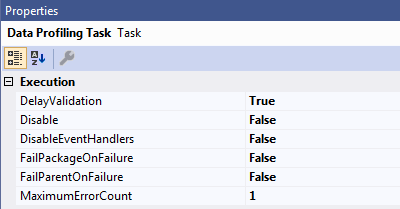
The Last part is "Data Profiling Task". As Destination, you have to specify FileConnection "ResearchResult". The most important here is to set an expression "ProfileInputXML" as "@[User::ProfileXML]" variable. Also, very important to set Property "DelayValidation" to True.


Step 4. Run the Package!

That might take a while or even error out.

Step 5. Analyze the results

You can analyze individual Database Profiling results using Microsoft's "DataProfileViewer.exe" utility, which can be found in "C:\Program Files (x86)\Microsoft Visual Studio\2019\Community\Common7\IDE\CommonExtensions\Microsoft\SSIS\150\Binn\" folder. 
The result should look like this:

Caveats of that method:

1. If you have a lot of big databases on your server, it might take forever to scan all of them. The only way to monitor the progress to look in the newly created folder for that server for separate XML files for each already scanned database.
2. If data sets are too big for your computer to comprehend you might get 'System.OutOfMemoryException' error. Separating by single table and task does not help. Only solution I've found is to run that package on a computer with a lot of free memory.
3. SSIS does not scan BLOB columns like VARCHAR(MAX), NVARCHAR(MAX), XML, Etc. It simply ignores them. So, if you still need to scan those columns you need to use another Profiling tool.


Wednesday, July 17, 2019

SSIS Data Profiling Bug uncovered by SQL Server glitch

I was doing Data Profiling in my environment using SSIS and hit very unusual error:
SSIS package "Package 2.dtsx" starting.
Error: 0x2 at Data Profiling Task, Data Profiling Task: Error occurred when profiling the data. The error message is: System.ArgumentOutOfRangeException: Specified argument was out of the range of valid values.
Parameter name: value
   at Microsoft.DataDebugger.DataProfiling.CandidateKeyProfile.set_KeyStrength(Single value)
   at Microsoft.DataDebugger.DataProfiling.KeyProfileGroupingSetTask.GenerateKeyProfile(TableQName parentTable, String countColumnName, Double keyStrength, Boolean isExactKey)
   at Microsoft.DataDebugger.DataProfiling.KeyProfileGroupingSetTask.PostProcessGroupBy(TableQName parentTable, String countColumnName, Double keyStrength, Boolean isExactKey)
   at Microsoft.DataDebugger.DataProfiling.KeyProfileGroupingSetTask.ComputeProfile(Boolean isGroupByQueryRun, TableQName parentTable, String countColumnName, Boolean isParentTempTable, Int64 parentRowCount)
   at Microsoft.DataDebugger.DataProfiling.GroupingSetWorkItem.Visit(GroupingPlanTreeNode node, TableQName parentTable, String countColumnName, Boolean isParentTempTable, Int64 parentRowCount)
   at Microsoft.DataDebugger.DataProfiling.GroupingSetWorkItem.ExecutePlan(List`1 plan)
   at Microsoft.DataDebugger.DataProfiling.GroupingSetWorkItem.DoWork()
   at Microsoft.DataDebugger.DataProfiling.TablePartitionedBatch.ComputeProfiles()
   at Microsoft.DataDebugger.DataProfiling.BuiltInProfiler.Profile().
Task failed: Data Profiling Task
SSIS package "Package 2.dtsx" finished: Success.

As you can see, there is no actual problem description or any failed values.
Here are the circumstances under which I could reproduce that error:
1. I have only "Data profiling task" in my SSIS package.
2. Chosen only "Column Value Distribution Profile" and "Candidate Key Profile" for problematic table.
3. Left all other parameters as Defaults and execute the package.

That produced the error.

I've tried following to reproduce it but it hasn't worked:
1. Single research on "Column Value Distribution Profile" or "Candidate Key Profile" - single items have not produced errors, only that pair together.
2. Copying that table another database has not produced the error.
3. When I've tried to specify single columns, not all columns returned the error, but only the one, which is unique.

I've found similar question on Microsoft forum and even posted my question and research there, but obviously, nobody could reproduce that error too. (https://social.msdn.microsoft.com/Forums/sqlserver/en-US/d0a8716b-54ae-4298-a03c-b9374ee1e0dc/systemargumentoutofrangeexception-error?forum=sqlintegrationservices)

So, then I've tried to look deeper at the data. I've noticed that when I run following queries I get different result:
EXEC sp_spaceused '[dbo].[ProgramLocking_JN]';
GO
SELECT COUNT(*)
FROM [dbo].[ProgramLocking_JN]
GO

As you can see, "sp_spaceused" procedure returns 336 rows, while in reality table has 337 rows.

DBCC CHECKDB returned no errors and following info on the table.
DBCC results for 'ProgramLocking_JN'.
There are 337 rows in 9 pages for object "ProgramLocking_JN".

Then I've tried to use DBCC UPDATEUSAGE as following:
DBCC UPDATEUSAGE(0,'ProgramLocking_JN') WITH COUNT_ROWS;
And got following result:
DBCC UPDATEUSAGE: Usage counts updated for table 'ProgramLocking_JN' (index 'ProgramLocking_JN', partition 1):
        ROWS count: changed from (336) to (337) rows.
DBCC execution completed. If DBCC printed error messages, contact your system administrator.

After that little fix the SSIS error has gone.

Lesson learned:
Before running SSIS Data Profiling it is nice to run "DBCC UPDATEUSAGE(0);" command against all databases you are doing your research.

Sunday, July 22, 2018

SSIS Script Task:Error: The Script Task is corrupted.


There are probably a lot of SSIS corruption errors, but that is one that is very easy to solve.

The whole error message is texted like this:
Script Task:Error: The Script Task is corrupted.
Script Task:Error: There were errors during task validation.
Script Task:Error: There was an exception while loading Script Task from XML: System.Exception: The Script Task "ST_74aca886806a416fa34ae89cac6237c2" uses version 15.0 script that is not supported in this release of Integration Services. To run the package, use the Script Task to create a new VSTA script. In most cases, scripts are converted automatically to use a supported version, when you open a SQL Server Integration Services package in %SQL_PRODUCT_SHORT_NAME% Integration Services. at Microsoft.SqlServer.Dts.Tasks.ScriptTask.ScriptTask.LoadFromXML(XmlElement elemProj, IDTSInfoEvents events)

That error came from an execution of SSIS package and it points that particular Script task is corrupted.

It is very confusing, because if you try to run the same package in the Visual Studio everything will be fine:

Just to be short: The error is caused not by corruption during deployment and not by corruption of SSIS DLL library, but just by different version of the compiled code.

Here is how to reproduce that error:
1. Create a package with a Script Task

2. Keep it simple - use C# as a language and click "Edit Script":
3. Enter only one line of a code "int TestVariable = 0;" into the Main section:
4. Then build a solution and deploy it on the SSIS server.
5. On SSIS server execute newly deployed solution:


6. When SSMS asks you want to see a report click "Yes"

7. As the result you will see "Status: Failed". If you click "View Messages" you'll see error details:


Here is how to Fix that problem:
1. In the menu chose Project's properties:

2. In the "Configuration Properties" section you will see TargetServerVersion. In my case it is 2017, while my SQL Server is only at version 2016.
3. The fix is simple: Just specify version of your SQL Server, where you want to deploy that package. Save, re-build/re-compile and re-deploy.

As the result, execution status of your SSIS package has to be "Succeeded":


Hope that post saves you a little time.

Saturday, July 16, 2016

Connect to SSIS when "The RPC server is unavailable"


Recently tried to connect to Remote SQL Server Integration Service directly from SSMS and got following error:


TITLE: Connect to Server
------------------------------
Cannot connect to 10.1.32.66.
------------------------------
ADDITIONAL INFORMATION:
Failed to retrieve data for this request. (Microsoft.SqlServer.Management.Sdk.Sfc)
For help, click: http://go.microsoft.com/fwlink?ProdName=Microsoft%20SQL%20Server&LinkId=20476
------------------------------
The RPC server is unavailable. (Exception from HRESULT: 0x800706BA) (Microsoft.SqlServer.DTSRuntimeWrap)
------------------------------
The RPC server is unavailable. (Exception from HRESULT: 0x800706BA) (Microsoft.SqlServer.DTSRuntimeWrap)
------------------------------
BUTTONS:
OK
------------------------------


I've found very old blog post on how to fix this error (http://www.kodyaz.com/articles/ssis-integration-services-remote-connection-rpc-server-unavailable.aspx) and decided to make a refreshment.

Here is how it's go:

Step 1. Login to the SQL Server host machine.

Step 2. Start "Windows Firewall" application:

Step 3. Choose "Inbound Rules" Tab:

Step 4. On the Right side click on "New Rule"

Step 5. On the first screen choose "Program":

Step 6. On Second screen you'd have to search for SSIS executable.
For SQL Server 2016 it is stored in:
"C:\Program Files\Microsoft SQL Server\130\DTS\Binn\MsDtsSrvr.exe"

Step 7. Choose "Allow the Connection"

Step 8. Uncheck "Public" and if necessary, uncheck "Private" too.

Step 9. Name your new firewall rule and leave some description for System Administrator and click Finish button:

Step 10. That is it. Now you can see your SQL Server Integration Service in Management Studio: