Thursday, June 16, 2016

Parameterizing Connections and Variables in SSIS

Being on SSIS presentation recently, I've realized that a lot of people, who are working with SSIS for years, still do not know what "Parameterizing" is and how to do it.

SSIS has been changed a lot in SQL Server 2012, where Microsoft announced "Project Deployment Model". Since then you can deploy Project, and you can assign Parameters to that project, which can be passed to it for execution. Before that, developers used Configurations to supply values for internal variables and connections.


For this test I've created one database "Project" scoped connection "AdventureWorks2016", which has to be available for all packages within my project, and "Package" scoped variable "TestVariable":


Parameterizing Connection

1. Do a right click on "AdventureWorks2016" connection and "Parameterize..."

2. Then you'll see "Parameterize" window. There you can change name of your new parameter or even not create a new parameter, but assign an existing one. You can also choose which property of your connection you want to parameterize. By default it offers "ConnectionString".

3. After necessary changes are done, press "OK". Then you'll see little "Function" sign near your Connection.


4. To see your newly created parameter just double click on "Project.Params" in "Solution Explorer":

It will open new "Project.Params" window with our new parameter:

ParameterizingVariable

That procedure is even easier.
1. In your opened "Project.Params" window click "New" icon:


2. Rename it to "TestParameter", change type to "String", and assign "Test Value":


3. Then switch back to your "Package" window and click on "Expression Builder" button for "TestVariable" in the "Variable" window:

4. You'll have "Expression Builder" window opened:

5.  Expand "Variables and Parameters" section and "Drag-n-Drop" "TestParameter" to the Expression small window. Please note the difference between Variables and Parameters: Parameters have "$Project" signature.

6. Than click OK and we will see the parameterized value for our "TestVariable":
Note the "Function" sign assigned to the variable.


As you can see it is very easy to parameterize.

Monday, June 13, 2016

JOIN by NULL

Using NULLs as a "value" is highly not recommended, but sometimes there are situations, when you have to JOIN two tables and NULL value matters and have to be included in the join.
In this post I'll demonstrate how you can do it.

At first will create test tables:
USE TestDB;
GO
IF EXISTS (SELECT NULL FROM sys.tables WHERE Name = 'A')
 DROP TABLE [A];
GO
IF EXISTS (SELECT NULL FROM sys.tables WHERE Name = 'B')
 DROP TABLE [B];
GO
SELECT * INTO A 
FROM (VALUES ('0'),('1'),('2'),('3'),('4'),('5'),(''),(NULL)) x(A) ;
GO
SELECT * INTO B 
FROM (VALUES ('4'),('5'),('6'),('7'),('8'),('9'),(''),(NULL)) x(B);
GO

If you just simply join these two tables you won't get NULL values at all:
SELECT * FROM A INNER JOIN B ON A.A = B.B;


Here are two different ways to JOIN by NULL values. They look identical from SQL Server perspective. So, use the one you are comfortable with:
SELECT * 
FROM A INNER JOIN B 
ON A.A = B.B OR (A.A Is Null and B.B Is Null);
GO
SELECT * 
FROM A INNER JOIN B ON EXISTS 
(SELECT A.A INTERSECT SELECT B.B);
GO


Thursday, June 9, 2016

Seven SQL Server JOIN types.

Not sure if I can compete with Wikipedia, but I will try and touch that beginner's subject.

At first, will create two tables in our TestDB and fill them by values.

Use TestDB
GO
CREATE TABLE A(A INT PRIMARY KEY);
GO
CREATE TABLE B(B INT PRIMARY KEY);
GO
INSERT INTO A VALUES (1),(2),(3),(4),(5),(0);
GO
INSERT INTO B VALUES (9),(4),(5),(6),(7),(8);
GO
SELECT * FROM A;
GO
SELECT * FROM B;
GO

That code creates two tables A & B and fills them by values A: from 0 to 5 and B: from 4 to 9.

Now will start joining these tables:

1. INNER JOIN

SELECT * FROM A INNER JOIN B ON A.A = B.B;

That join extracts ONLY matching records from A&B:


2. LEFT JOIN 

SELECT * FROM A LEFT OUTER JOIN B ON A.A = B.B;

That Join extracts ALL records from the LEFT table and ONLY matching records from the right table within that join:
There is also variation of LEFT JOIN with exclusion of matching records. That join very useful when you need to extract only not-matching records:

SELECT * FROM A LEFT OUTER JOIN B ON A.A = B.B
WHERE B.B IS NULL;

3. RIGHT JOIN 

SELECT * FROM A RIGHT OUTER JOIN B ON A.A = B.B;

That Join extracts ALL records from the RIGHT table and ONLY matching records from the left table within that join:

There is also variation of RIGHT JOIN with exclusion of matching records. That join works similarly as a left exclusion join:

SELECT * FROM A RIGHT OUTER JOIN B ON A.A = B.B
WHERE A.A IS NULL;

Generally, RIGHT JOIN is the opposite of LEFT JOIN. Just for the sake of consistency, try to never use it in your code, there is nothing worse within a query to have a mix of LEFT and RIGHT joins

4. FULL OUTER JOIN

SELECT * FROM A FULL OUTER JOIN B ON A.A = B.B;

That Join includes ALL values from both tables regardless matching records:
There is also variation of FULL JOIN with exclusion of matching records. It just simply excludes all matching records from the output:

SELECT * FROM A FULL OUTER JOIN B ON A.A = B.B
WHERE A.A IS NULL OR B.B IS NULL;

5. CROSS JOIN

SELECT * FROM A CROSS JOIN B;

That special join returns Cartesian product of two tables - result of multiplication of all rows in one table by all rows in another. Cross join can be very dangerous when you link huge tables.
In our case, because we have only six records in each table, we will have resulting data set of 36 records (6x6=36). Each record in table "A" will be linked to each record in table "B":

For CROSS JOIN we also can specify an exclusion of matching records:

SELECT * FROM A CROSS JOIN B
WHERE A.A != B.B;
That query will produce 34 records (36 - 2 matching records)

If we try to select only matching records like this:

SELECT * FROM A CROSS JOIN B
WHERE A.A != B.B;
The result will be similar to INNER JOIN.

We also can get Cartesian product by using INNER JOIN:

SELECT * FROM A INNER JOIN B ON 0 = 0;
That query is identical to regular CROSS JOIN and will return 36 records.

6. Self Join 

Yes, you can do it:
SELECT * FROM A AS A1 INNER JOIN A AS A2 ON  A1.A=A2.A;

Which will return All rows from a table doubling columns. Usually, you do not need that, but there are special cases like linking to the next or previous row:

SELECT A1.A AS A1, A2.A AS A2 FROM A AS A1
LEFT OUTER JOIN A AS A2 ON  A1.A + 1 = A2.A;

There can be multiple Self Join scenarios, that is just one of them.
 

7. APPLY

That is the most complicated type of join and it is usually used with function calls.
There are two variations of APPLY: CROSS and OUTER:
- OUTER APPLY returns ALL Rows from the left side of the query (like LEFT JOIN);
- CROSS APPLY works as regular JOIN and returns only "matching" rows, which are not enpty.

So, will create an artificial function just for the sake of an example:

CREATE FUNCTION dbo.fn_C (@C INT) RETURNS TABLE AS
RETURN (
    SELECT TOP (CASE WHEN @C % 2 = 0 THEN 0 ELSE 1 END) 
        CAST(RIGHT(CAST(@C * PI() AS VARCHAR),3) AS INT) AS C
);


Here is a simple example of using OUTER APPLY with that function:

SELECT * FROM A OUTER APPLY dbo.fn_C (A) AS C;


OUTER JOIN Selects all values from table "A" and all corresponding values from the Function.

Here is a simple example of using OUTER APPLY with that function:

SELECT * FROM A CROSS APPLY dbo.fn_C (A) AS C;


CROSS APPLY extracted from the table "A" only those records, which had correspondence in the function.

The biggest advantage APPLY gives you when you need to use value from one table within a sub-query with a second table:

SELECT * FROM A OUTER APPLY 
(SELECT MAX(B) FROM B WHERE A.A * 2 > B.B ) AS C(M);

The result will look like this:


Conclusion

There can be more than two table join with any crazy combination of different types of joins. Knowing how each join works is important to return right data set.

Wednesday, June 8, 2016

SSMS 2016 Newest features

Here the list of newest features I've found:

1. Scroll bar indicates current position of a cursor within a document and indicate positions of any syntax errors:


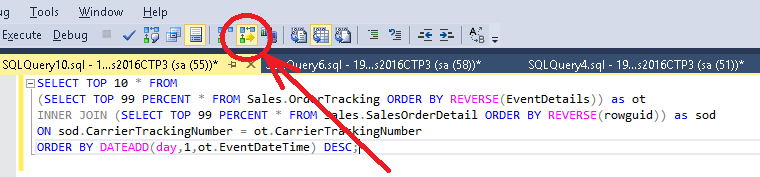
2.Estimated Execution plan is now available from the Keyboard. You do not have to move your mouse to a Tool bar every time you want to see it, Just press Ctrl-L. Extremely useful.


3. In SSMS 2016 you can see execution in action. You just have to enable "Include live query statistics" in a Tool bar:

Then, when you run a query, execution will be shown in action:

4. Now you can easily compare query plan to previously saved plan! Just do right click on your plan, load saved plan and enjoy.


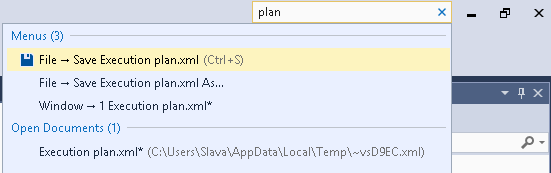
5. If you are lost in SSMS you can use "Quick Launch" at the top of SSMS window and do operation you want:


And the biggest of all....

I even haven't numbered it, because you probably already know it:

SQL Server Management Studio is now distributed separately for m the SQL Server.
The installation contains multiple other products, such as "Configuration Manager", which is actually useless, because it does not allow you to connect to the remote server.

Tuesday, June 7, 2016

Properties for In-Memory and Temporal Tables

Couple of days ago I hit a problem with restoring AdwentureWorks2016 because it contains In-Memory tables.
There was an immediate question: which tables are created In-Memory and how big they are?
Unfortunately, I couldn't answer that question in one click. So, I decided that it is a time to upgrade my "SQL on your fingertips" script and include there properties of new SQL Server objects.

I've found a DMV "sys.dm_db_xtp_memory_consumers", which provides information about Memory allocations of In-Memory tables and indexes.

And here is the script I came up with:
;WITH InMemory as (
 SELECT object_id
  , SUM(CASE memory_consumer_type WHEN 2 THEN allocation_count ELSE 0 END) as row_count
  , SUM(CASE memory_consumer_type WHEN 2 THEN allocated_bytes ELSE 0 END)/8192. as Alloc_Pages 
  , SUM(CASE memory_consumer_type WHEN 2 THEN used_bytes ELSE 0 END)/8192. as Used_Pages
  , SUM(CASE memory_consumer_type WHEN 2 THEN 0 ELSE allocated_bytes END)/8192. as Index_Alloc_Pages
  , SUM(CASE memory_consumer_type WHEN 2 THEN 0 ELSE used_bytes END)/8192. as Index_Used_Pages
  , SUM(allocated_bytes)/8192. as Total_Alloc_Pages
  , SUM(used_bytes)/8192. as Total_Used_Pages
 FROM sys.dm_db_xtp_memory_consumers
 WHERE object_id > 0 
 GROUP BY object_id
 )
 SELECT CASE WHEN t.name Is Null THEN 'View' ELSE 'Table' END as Type,
 OBJECT_SCHEMA_NAME(st.object_id) + '.' + OBJECT_NAME(st.object_id) as ObjectName,
 CASE WHEN t.is_memory_optimized > 0 THEN mc.row_count ELSE SUM(CASE WHEN st.index_id < 2 THEN st.row_count ELSE 0 END) END as row_count,
 ROUND(CAST(CASE WHEN t.is_memory_optimized > 0 THEN mc.Alloc_Pages ELSE SUM(CASE WHEN st.index_id < 2 THEN st.reserved_page_count ELSE 0 END) END AS float)/128.,3) as Data_Size_MB,
 ROUND(CAST(CASE WHEN t.is_memory_optimized > 0 THEN mc.Used_Pages ELSE SUM(CASE WHEN st.index_id < 2 THEN st.used_page_count ELSE 0 END) END AS float)/128.,3) as Used_Data_Space_MB,
 ROUND(CAST(CASE WHEN t.is_memory_optimized > 0 THEN mc.Index_Alloc_Pages ELSE SUM(CASE WHEN st.index_id > 1 THEN st.reserved_page_count ELSE 0 END) END AS float)/128.,3) as Index_Size_MB,
 ROUND(CAST(CASE WHEN t.is_memory_optimized > 0 THEN mc.Index_Used_Pages ELSE SUM(CASE WHEN st.index_id > 1 THEN st.used_page_count ELSE 0 END) END AS float)/128.,3)as Used_Index_Space_MB,
 ROUND(CAST(CASE WHEN t.is_memory_optimized > 0 THEN mc.Total_Alloc_Pages ELSE SUM(st.reserved_page_count) END AS float)/128.,3) as Full_Size_MB,
 ROUND(CAST(CASE WHEN t.is_memory_optimized > 0 THEN mc.Total_Used_Pages ELSE SUM(st.used_page_count) END AS float)/128.,3) as Full_Used_Space_MB,
 t.max_column_id_used as MaxColumn,
 CASE WHEN t.is_memory_optimized > 0 THEN 'Yes' ELSE '' END as 'In-Memory',
 CASE WHEN t.temporal_type > 0 THEN t.temporal_type_desc ELSE '' END as Temporal, 
 t.lock_escalation_desc as 'Lock Escalation'
FROM sys.dm_db_partition_stats st 
LEFT JOIN InMemory as mc ON mc.object_id = st.object_id
LEFT JOIN sys.tables as t ON t.object_id = st.object_id
WHERE OBJECT_SCHEMA_NAME(st.object_id) != 'sys'
GROUP BY OBJECT_SCHEMA_NAME(st.object_id), OBJECT_NAME(st.object_id), t.name
 , t.max_column_id_used, t.lock_escalation_desc, t.is_memory_optimized, mc.row_count, mc.Alloc_Pages, mc.Used_Pages
 , mc.Index_Alloc_Pages, mc.Index_Used_Pages, mc.Total_Alloc_Pages, mc.Total_Used_Pages, t.temporal_type
 , t.temporal_type_desc
ORDER BY Full_Size_MB DESC, row_count DESC
OPTION (RECOMPILE);

Here are the results from AdventureWorks2016 DB I've got:
In that data set we have a new column "In-Memory" - indicating that table is created to be stored In-Memory. Data Size numbers show real memory usage by that table. That option is supposed to work in SQL Server 2014 and up.

There is also new column called "Temporal". It indicates if a table is System Versioned or it is Historical repository. Row_Count number for Historical repository indicates number of changes done to the main table. That option is applicable only for SQL Server 2016.

I've updated only "Ctrl-F1" button, which returns list of tables within a database. Here is the link to the full script archive: https://drive.google.com/open?id=0B5yWoyX1eEWqZ3FJUnNHZm80bzQ


Monday, June 6, 2016

SQL Server 2016 Licensing

My research is based on Microsoft SQL Server 2016 Licensing Guide Document.

Highlights:

- Two Major Licensed Editions: Enterprise and Standard;
- Enterprise Edition can be licensed only "By Core". Standard also available on "Server+CAL*" basis;
- If you have SA** you can still use your old CAL licenses with SQL Server 2016 Enterprise Edition, but will be limited by usage of only 20 Cores on your server;
- Standard Edition is limited by 4 Sockets/16 Cores and 128 Gb of Memory;
- For "Core Based" license model you have to purchase at least 4 Core licenses, then you can add cores in increment of 2;
- Core Licensing model is used when the number of users/devices cannot be counted easily;
- If SQL components, such as: SSAS, SSRS, SSIS, DQC are installed separately from SQL Server they must be fully licensed the same way as a SQL Server;
- One License covers all SQL Server instances on the same physical or virtual box;
- If you have SA** and use one of Microsoft HA/DR solution you can have ONE free licensing for the secondary server as far as you do not read from it and do not perform any operations on it, such as DBCC CHECKDB etc.
- If you have License Mobility you can have one free license for Passive Secondary node in the Cloud;
- If you have more than one secondary Node, these additional Nodes have to be licesed individually;
- You can re-assign SQL Server licensing from one server to another once every 90 days. With SA** you can do it as often as you want;
- Every SQL Server must be licensed, unless it is Developer Edition or Evaluation version;
- You can't use Developer Edition for a production;
- If you have SA**you can have a right for free upgrade to a newer product version, but with the same edition;


*CAL - Client Access License. A license per user or any electronic device. (See my older post: CORE vs CALs);
**SA - Software Assurance agreement with Microsoft.  

Multiplexing

"Multiplexing" is a term to limit usage of per CAL model.
You are prohibited to use CAL for devices/processes, which allow access to the SQL Server multiple peolpe or other servers. The best way to demonstrate "Multiplexing" is to provide list of prohibited cases of CAL licensing usage:

Case 1: Company has an application server, which extracts SQL Server data and generates a report, which is automatically sent to 10 individuals.
For that case you need 10 CAL Licenses for all people getting automated reports.

Case 2: Company has a department of 15 people, who scan documents through only one device connected to SQL Server to store scanned images.
For that case you need 15 CAL Licenses for all people who use that device to store scanned data into SQL Server.

Case 3: Company has a Web server, which uses SQL Server as a back end. Web application is used by all employees.
Obviously, you have to have CAL licenses for ALL your employees.

Case 4: Company has a Web server, which uses SQL Server as a back end. Web application is used by outside world.
Technically, you can buy CAL license for every logged user, but in that case it will be probably cheaper and easier go with Core Based licensing model. If you are not sure how many users you have, you must use only Core Based licensing model.

Case 5: Company installed a security system to keep records of all people entering the building.
You must use only Core Based licensing model because you do not know exact number of people triggering the SQL Server data entry.

Case 6: Company installed web camera on their building, which automatically stores videos in a SQL Server.
Because we can't determine how many people would have their pictures in SQL Server database, Microsoft requires to use Core Based licensing model.

*Somebody might disagree with these cases, but if you are not sure, you have to contact Microsoft in each individual case.

Virtualizing

Licensing SQL Server in Virtual environment can be performed in two ways:

Per Virtual Machine 

You have to license SQL Server by number of Virtual Cores allocated for that machine. That is only option for those who runs Standard Edition under Core Based Licensing;
That method is preferrable for small organization with not very high SQL Server load.

Benefits: When you have only one virtual box with only four cores for a SQL Server on bigger Host machine, you license only/minimum four cores for your box and use other host resources by other non-SQL virtual machines.

Per Host 

You have to license SQL Server by total number of Physical Cores on that Host Machine;
Benefits: You have ability to assign down to one core per Virtual Machine, that allows you to have up to 16 Virtual SQL Server boxes on 16 core host.
For customers with SA (Software Assurance) available option to have even more Virtual Cores, utilized by SQL Servers, than physical cores.


Pricing

Table of current estimated SQL Pricing (https://www.microsoft.com/en-us/server-cloud/products/sql-server/purchasing.aspx). Keep in mind that Core licenses sold in packs of two.
Edition, Core/CALPrice, USD
Enterprise, Per 2 Cores$ 14,256
Standard, Per 2 Cores$ 3,717
Standard Server for CAL$ 931
Standard, Per CAL$ 209

Sunday, June 5, 2016

Database Restore Error of a DB with In-Memory OLTP objects

Just installed SQL2016 Core edition and tried to restore AdventureWorks2016 Database on the engine.
However got an unusual error I've never seen before:

The full Error text is:
Msg 41379, Level 16, State 0, Line 0
Restore operation failed for database 'AdventureWorks2016CTP3' due to insufficient memory in the resource pool 'default'. Close other applications to increase the available memory, ensure that both SQL Server memory configuration and resource pool memory limits are correct and try again. See 'http://go.microsoft.com/fwlink/?LinkID=507574' for more information.


Msg 3167, Level 16, State 1, Line 2
RESTORE could not start database 'AdventureWorks2016CTP3'.
 

Msg 3013, Level 16, State 1, Line 2
RESTORE DATABASE is terminating abnormally.


I've followed the link and have used the suggested script. However, recommended 70% was not enough and I had to increase it up to 90%.
I also closed all apps on the server and stopped some services.

Here is the script I've used:
ALTER RESOURCE GOVERNOR DISABLE
GO
ALTER RESOURCE POOL "default" WITH ( MAX_MEMORY_PERCENT = 90 ) 
GO
ALTER RESOURCE GOVERNOR RECONFIGURE  
GO


After that everything went OK. Still only a question about these magical 13 percent:

It looks like SQL Server has one more caveat for DBA's during restore process.